A mentored programme works because the participant feels known. The mentor remembers what they set out to do, notices when the same thing happens again, and asks about the promise they made last week. AI feedback on its own is the opposite: every hand-in is rated as if it were the first.
The participant folder fixes that. Each participant gets a folder of short, sourced facts about them: their goals, the patterns in their work, their commitments, their context, and your own notes. The AI reads the folder before it rates a hand-in and updates it afterwards. You and your staff curate it on the page you already use for that student, and the participant can read all of it except your own mentor notes. By week nine the feedback can say “you held the silence you couldn’t hold in week one”, because the folder remembers week one.
Concepts
A participant folder is everything the programme knows about one student on one site: their live folder facts, plus their raw history of hand-ins, AI ratings, transcripts and material. A folder belongs to one site and one participant. It is never shared with another site. It is meant to be erased with the participant’s account; today Delete on the people list disables the account, and permanent erasure is coming.
A folder fact is one durable statement you can trace back to its source. It has a type, a short name, a one-line description and a body. It also records its provenance: the hand-in, material or staff member it came from. There are five types:
- Goal: what the participant is trying to achieve.
- Pattern: something that keeps happening in their work.
- Commitment: something they said they would do.
- Context: their situation, such as their job, tools and constraints.
- Mentor note: something you or your staff want the programme to keep in mind. Only staff write mentor notes; the AI never does. They are the mentor’s own: read by staff only, never shown to the participant, and never quoted by the AI — though the AI reads them before it speaks, so they shape its feedback.
Facts are never deleted. Editing a fact writes a new version that replaces the old one. Retiring a fact takes it out of the live folder but keeps it. Both old versions and retired facts stay in a collapsed “Retired facts” section, which shows what replaced each one, who replaced or retired it, and when.
Folder material is anything you add to a folder on the participant’s behalf: notes from a mentor call, a question they asked in a webinar, a work conversation, their intake answers. You give it a label and either paste text or upload an audio or video recording. A recording is first transcribed from your site’s transcription minutes. The AI then reads the material once and proposes facts from it; material is never scored. The difference from a hand-in is who adds it: the participant hands in their own work, and staff add material.
The rater is the AI that rates hand-ins for an assignment with a rating prompt. With the folder, it works like this:
- Before rating, it receives the participant’s live facts and their three most recent items of history, next to your rating prompt and the hand-in itself. Facts are always included. If the history is too long, the oldest items are dropped until it fits. It can also look up your own teaching in the assignment’s scope — lesson text, files and transcripts — and the hand-in’s page keeps a staff-only trace of what it read (the Teaching & Feedback chapter).
- After rating, its answer has two parts: the feedback the participant sees, as before, and a list of changes to the folder (add, update or retire a fact). Each change points back to the hand-in it came from.
Changes apply at once, with no approval queue. You curate afterwards rather than approving in advance. If a change can’t be understood, it is skipped and logged, and the participant still gets their feedback. Rating a hand-in is still one AI request.
Nothing in a folder is hidden from its participant, except mentor notes. They can read every other live fact — including every fact the AI writes — and where it came from on their own page, which students see as Growth (Utvikling in Norwegian), but they can’t change anything there. Disputes come to you. A mentor note is private in the product, not secret: it is still the participant’s personal data, so write nothing you could not stand behind if they read it.
Hands-on
The walkthroughs follow Mira. She has turned her flagship course into a mentored cohort, “Automate Your Week — Coaching Cohort”, where participants hand in a short reflection every week. One of them is Ingrid, an office manager at a small accounting firm. Ingrid wants her Friday client-hours report to take thirty minutes instead of three hours.
Mira normally runs her site by talking to her AI assistant, but the folder has no MCP tools yet. Curating a folder, adding material and reading a folder all happen in the admin UI, and the walkthroughs below use it. The AI’s part runs on its own: the rater and the material reader work in the background whichever way the hand-in or material arrived.
Give a programme a memory
The folder starts working for any assignment that has a rating prompt, because that is the assignment the rater runs on. Mira’s cohort has one assignment, “Weekly reflection”. She sets it up under Courses → the course → Assignments → New assignment with this rating prompt:
You are the coach in “Automate Your Week”, a mentored programme where non-programmers learn to automate their weekly work with spreadsheets and AI tools. The participant hands in a weekly reflection. Give warm, specific, honest feedback in at most 180 words. Name one thing that went well and one concrete thing to try next week. Build on what you know about the participant from earlier weeks, and hold them to what they said they would do.
Your prompt doesn’t need to explain the folder. The platform adds the folder to the request and asks for the list of changes itself. Write the prompt about the coaching you want, and ask it to build on what it knows. Then publish the assignment.
Start a folder from the intake
Before the first hand-in, Mira gives each participant a starting point. She opens Students → Ingrid Berg, scrolls to Folder and uses Add a fact for what Ingrid’s intake form told her:
- a Goal, “Weekly report in under 30 minutes”, with the details of the Friday routine in the body;
- a Context fact, “Office manager at a 12-person accounting firm”, recording that she uses Google Sheets daily and has no programming background.
Facts Mira types show “Added by Mira Lund” and read “From: your mentor” on Ingrid’s page. Adding, editing and retiring facts needs the student-management privilege, the same one that reviewing submissions needs.
Add what you learned on a call
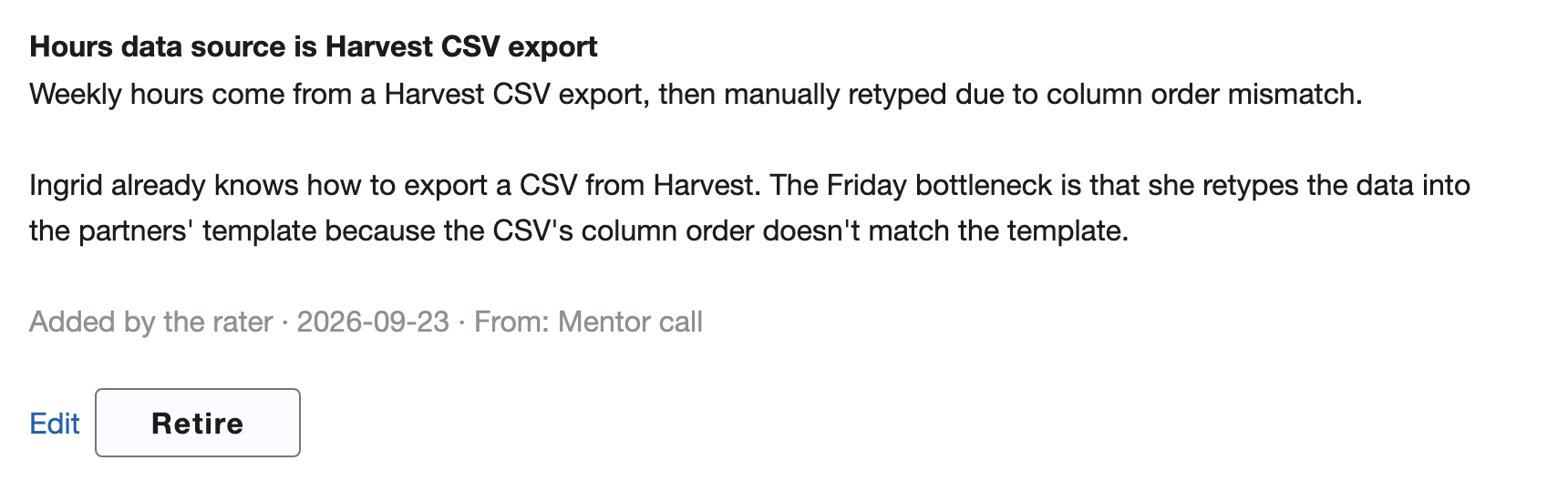
After the kick-off call, Mira doesn’t turn her notes into facts by hand. Under Material → Add material she picks the label Mentor call, pastes her notes and clicks Add material. The material shows “Waiting to be read” for a few seconds, then “Read”. From her notes the AI added three facts, each marked “Added by the rater” and showing “From: Mentor call” as its source:
- Context: the hours come from a Harvest CSV export that Ingrid retypes because the columns are in the wrong order;
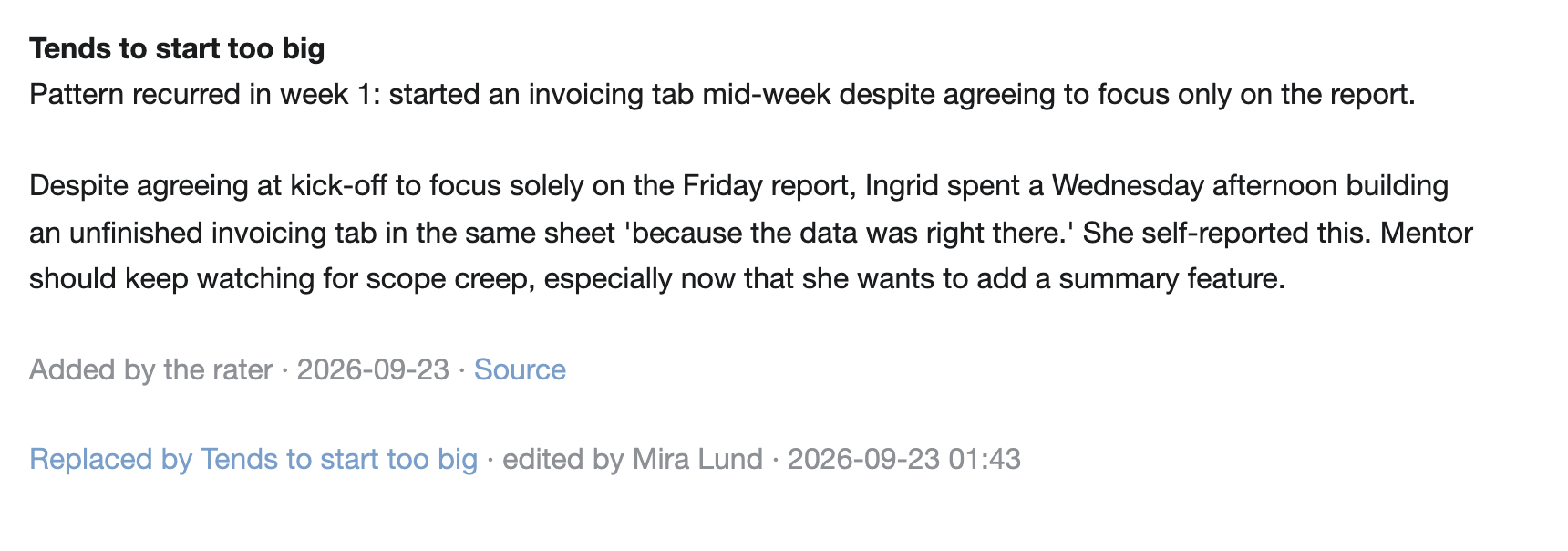
- Pattern: “Tends to start too big”. She wanted to automate invoicing, the report and onboarding all in week one;
- Commitment: “Week 1: Build Harvest-importing Google Sheet”, working on a copy of the partners’ template.
For a recording, upload it under Upload a recording instead of pasting text. It is transcribed first (“Being transcribed”, then “Transcribed”) and read after that. The minutes come from your site’s transcription pool. If the recording can’t be transcribed, the material says why: the month’s minutes are used up, the recording is too long, or transcription isn’t part of your plan. Once the reason is fixed, Retry transcription runs it again.
Watch a hand-in use the folder
Ingrid hands in her week 1 reflection. The sheet works: Friday now takes 70 minutes instead of three hours. She also admits she lost Wednesday afternoon building an invoice tab “because the data was right there”. The rater reads her folder before it answers, and the feedback shows it:
Ingrid, this is real progress: INDEX/MATCH auto-reordering the columns turned three hours into 70 minutes, and you did it on a safe copy just as planned … On the invoicing detour: you caught yourself and named it honestly … a reminder of why we scoped down to one project. Before adding a client summary next week, I’d like you to first tackle the client-name mismatch … That’s the last mile of this goal.
It then updated the folder. It recorded the week 1 commitment as done, updated the “Tends to start too big” pattern with the invoicing detour, and added a new commitment for week 2. In the admin panel each of those facts has a Source link back to the hand-in.
Keep the folder right
The AI’s changes apply without your approval, so curating afterwards is your job. Mira does three things on Ingrid’s folder:
- Edit. A fact can be nearly right, or worded in a way Mira wouldn’t put it to Ingrid, who reads her whole folder. Mira opens Edit, rewrites the body and saves. The edit creates a new version, and the old one moves to Retired facts marked “Replaced by Tends to start too big · edited by Mira Lund” with the date and time. When the rater updates a fact after a hand-in or a material read, the old version reads “updated by the rater” instead, so her own edits are easy to tell from the AI’s.
- Retire. The week 1 commitment is done, so she clicks Retire. It leaves the live folder at once and stops shaping feedback. It stays under Retired facts as “Retired by Mira Lund” with the date and time.
- Add a mentor note. She adds a Mentor note, “Motivated by getting her Friday back”, so the next rating frames Ingrid’s next step in minutes saved.
What your participant sees
Ingrid finds Growth in the site header, after Courses and Assignments; a Norwegian site calls it Utvikling. Her old bookmark to the folder still lands there. The page shows her live facts grouped as Goals, Patterns, Commitments and Context — never Mentor notes. Each fact shows when it was added and where it came from (“From: your mentor”, “From: Mentor call”, or a link to the hand-in). Her history is listed below: her hand-ins, linked, and the material Mira added, with its text behind Show text. The page has no buttons and no forms. If Ingrid disagrees with something, she takes it up with Mira.
Things to know
- Every fact except a mentor note is visible to the participant, including those the AI writes. The AI is told this and writes plain statements of what was said, done or agreed, but it is still worth reading its facts and editing any whose wording you wouldn’t use yourself.
- Mentor notes are yours. Only staff write them, only staff see them, and the rater never quotes one.
- The folder is not shared across sites. A participant who takes a programme on another Omumu site starts with an empty folder there.
- The cost is small and visible. Each rating or material read is one AI request. Its input and output tokens are recorded in the outcome log with the result.
Reference
No MCP tools cover this chapter’s capabilities yet.